3.0 USING THE SYSTEM
This section of the manual will highlight the major operations of the system that is: Registration, Accepting invitations, Tender bidding and Awards.
3.1 REGISTRATION
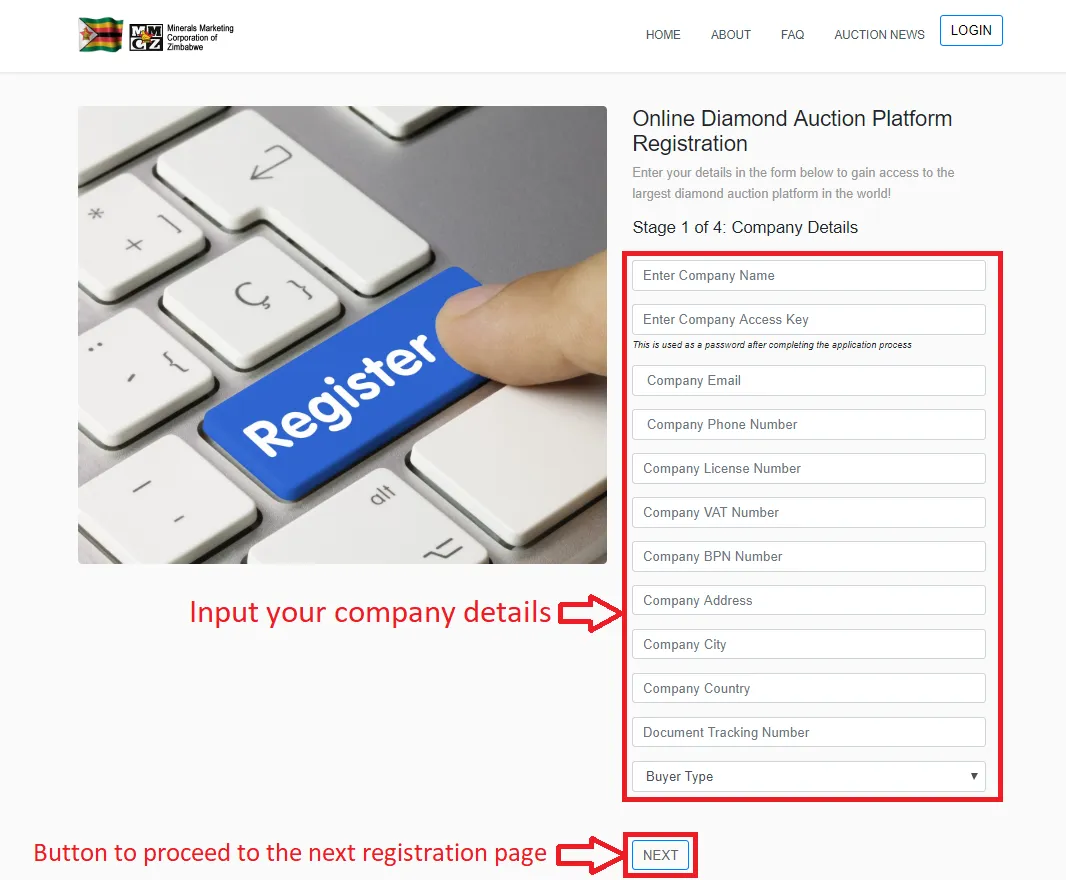
This process includes getting into the system records as a buyer. From the landing page click on the “Register” button to get to the registration page. Registration is a 4 stage process and this registration page is the first stage, input the company details in the input fields and click the “next” button to proceed to the second step of registration (Figure 2).
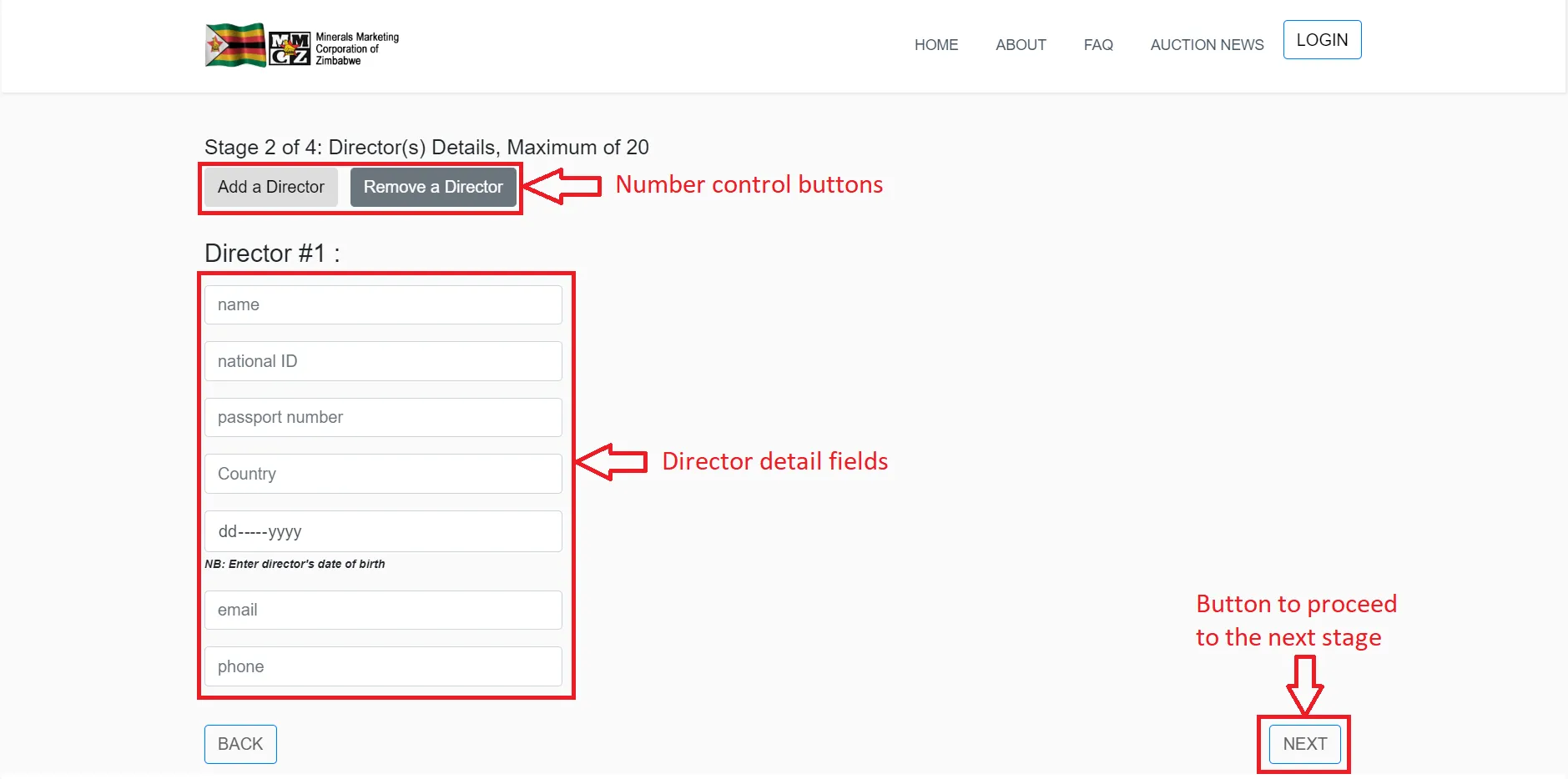
The second stage of registration involves registering the company’s directors. Options to add more directors is available, with a maximum of 20 directors. When done click the next button to get to the third stage on registration (Figure 2.1).
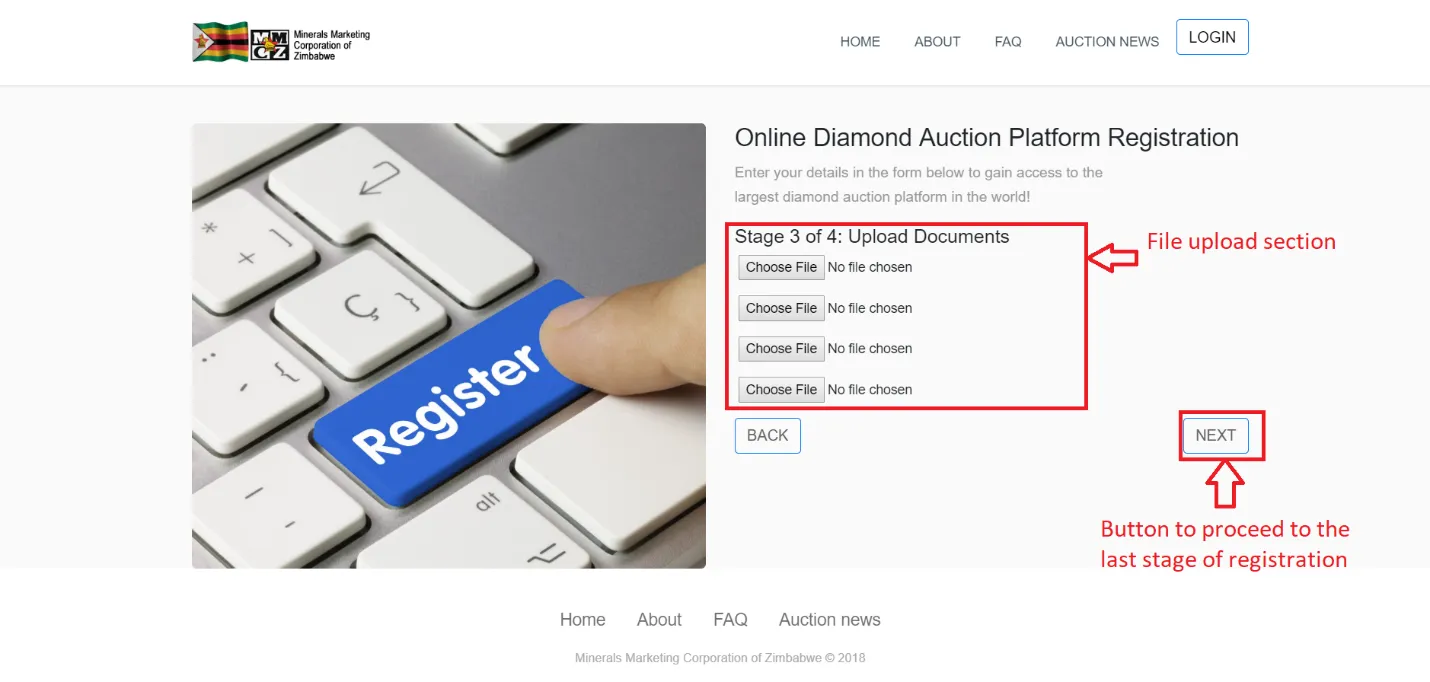
After directors are done, the third stage is a documents section. Depending on your customer type (Local/ International) a certain number of documents have to be uploaded (Figured 2.2).
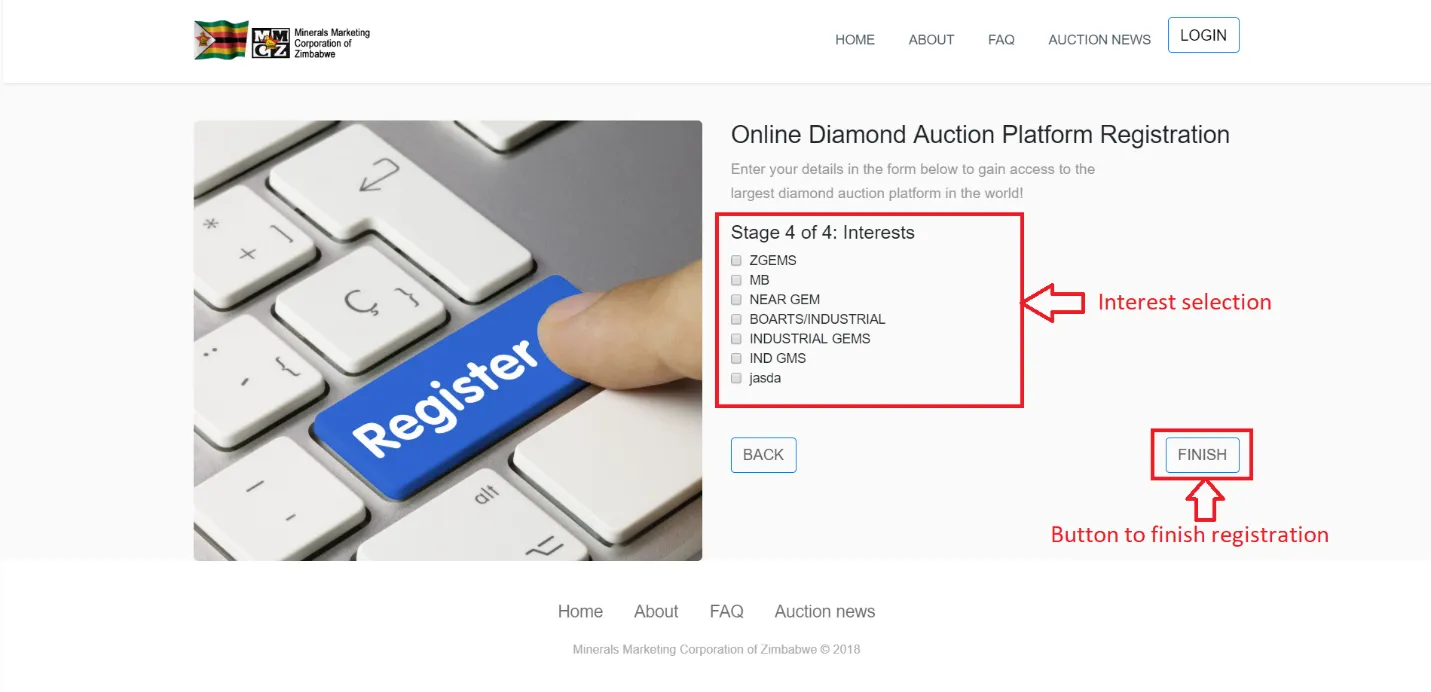
The last stage of the registration process is the interests. This section has the gem categories and you pick the interests of the company (Figure 2.3).
When registration is done, the team at MMCZ will have to authorize the account and only until then you will not be able to do anything you will be prompted to login in and you will be presented with a temporary screen showing the authorization process of your account (Figure 2.4).
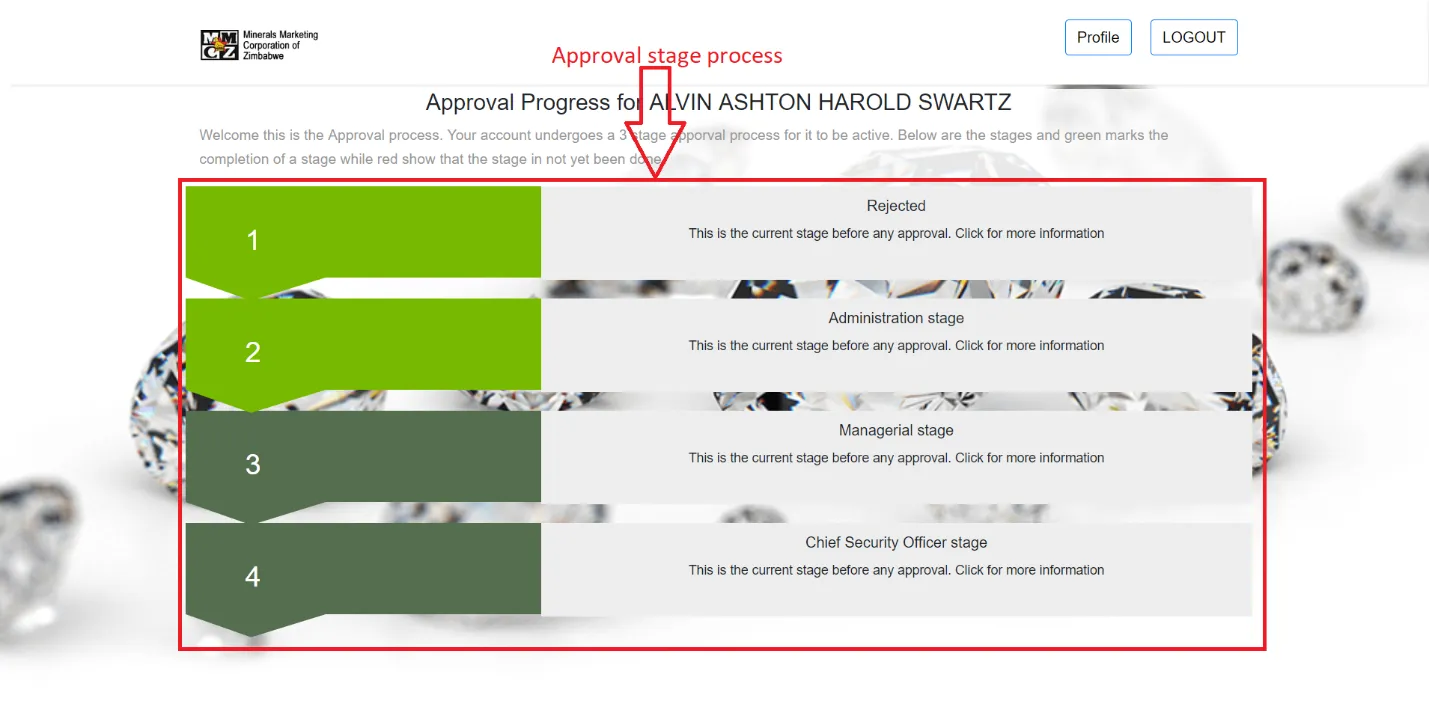
After approval from all the levels you become a fully registered buyer and when you log in you will be presented with dashboard. Only after achieving this can you start participating in the tenders that you are invited.
3.2 TENDER PROCESS
This is the process when the buyer participates to win parcels in a tender. The process involves MMCZ issuing invitations to buyers for a set tender. The buyer has to accept the invitation in order to participate in the tender. Failure to accept the invitation before the tender start date will render the buyer unable to participate in the tender unless MMCZ puts an exception. When the tender starts, buyers bid against the parcel they want to bid on until the tender closing date.
After this the MMCZ team will start the awarding process and after they finish the buyers are alerted on the parcels they have been awarded and those that they have not been awarded. To kick start the tender process is the invitation process.
3.2.1 Accepting invitations
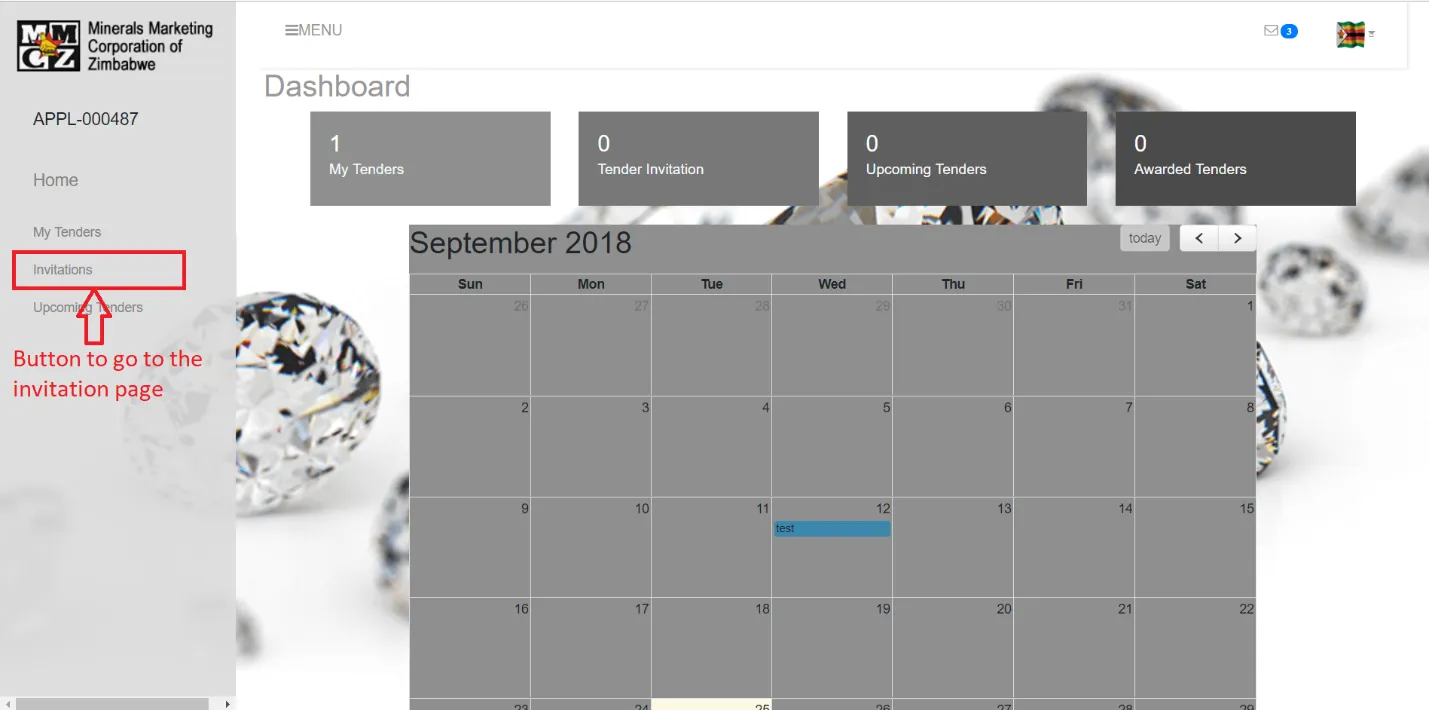
From the dashboard, to the left of the screen is the main menu with the system options, click on the “Invitations” option (Figure 2.4).
Upon clicking the invitation option the invitations page will be displayed. This page will show the invites to specific tenders that were sent to you, these correspond to the email invitations sent to buyers. Tender invites will have specific details on the dates and time of the tender and cut of time, also action buttons to accept or reject the invitation are provided (Figure 2.5)
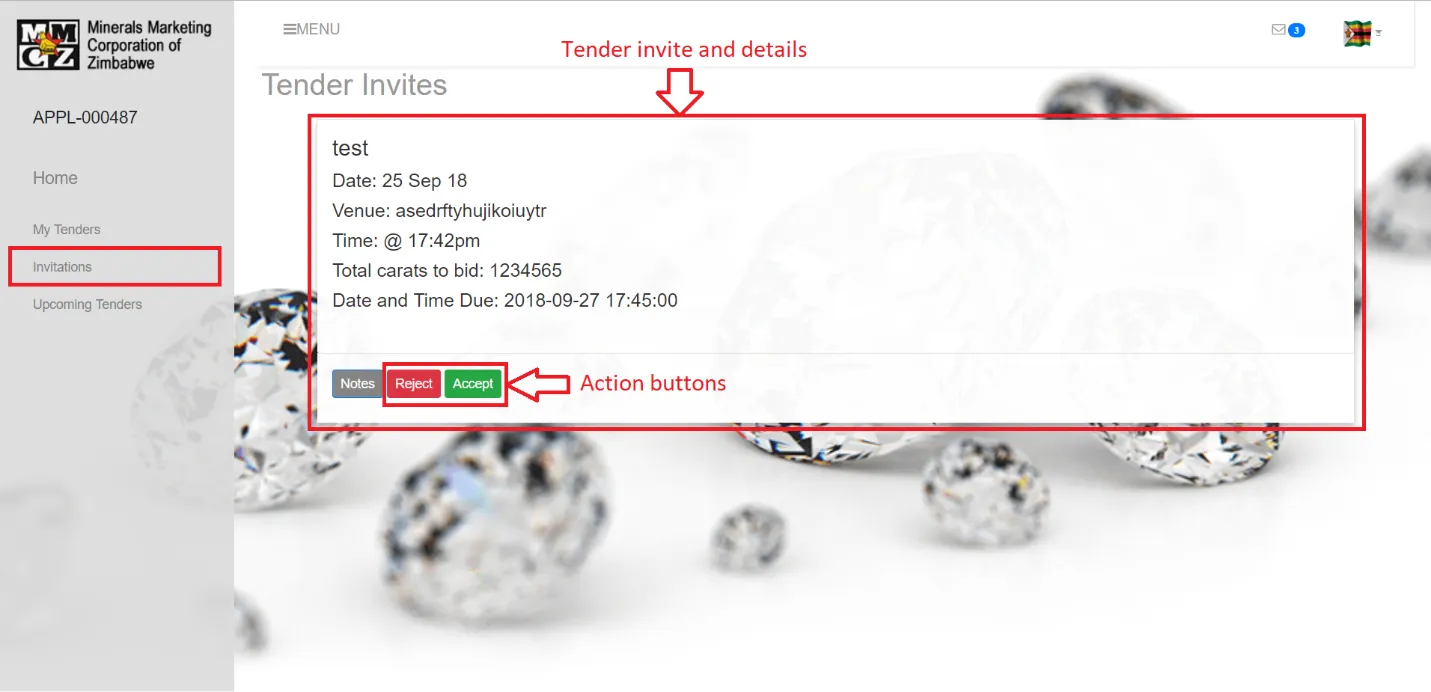
After accepting the invite come the bidding process.
3.2.2 Bidding Process
This is a process were the buyer puts their proposed /willing amount they can afford to for a parcel. The higher the bid the higher the chances to win the parcel as the highest bid wins the parcel. To start the process click the option “My Tenders” form the main navigation to the left of the page. A page with information on the tenders is produced. Options like all tenders, upcoming, ongoing and awarded tenders are provided.
All tenders tab shows all tenders associated with the buyer. Upcoming tenders tab shows all tenders yet to start with which the buyer has accepted invites to participate. Ongoing tenders shows the tenders in progress and this is ere the biding happens. Lastly but not least is the awarded tenders option, this shows finished tenders to which the buyer has won some parcels.
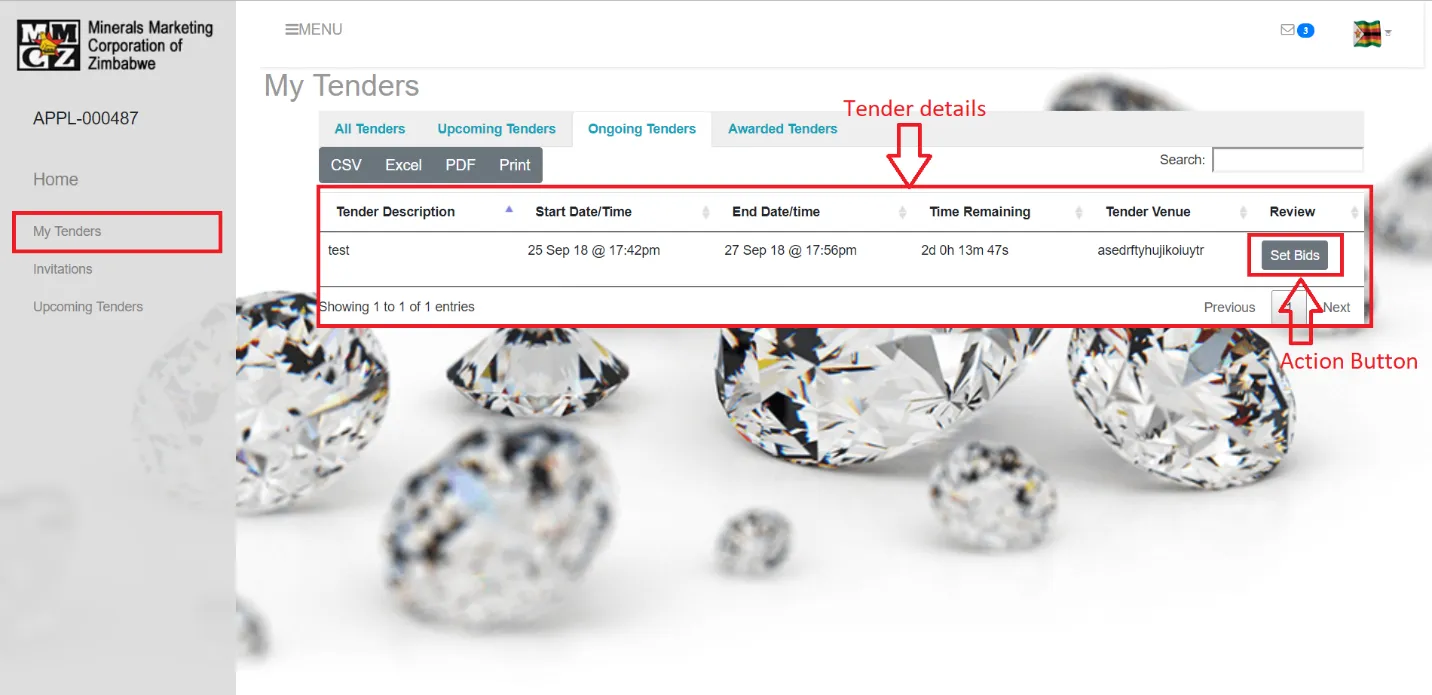
Under the ongoing tenders is the tender details that is active at that time and a countdown timer is available to let you know how much time is left for the tender to close. To start bidding you have to click a button labeled “set bids” under ongoing tenders (Figure 2.6).
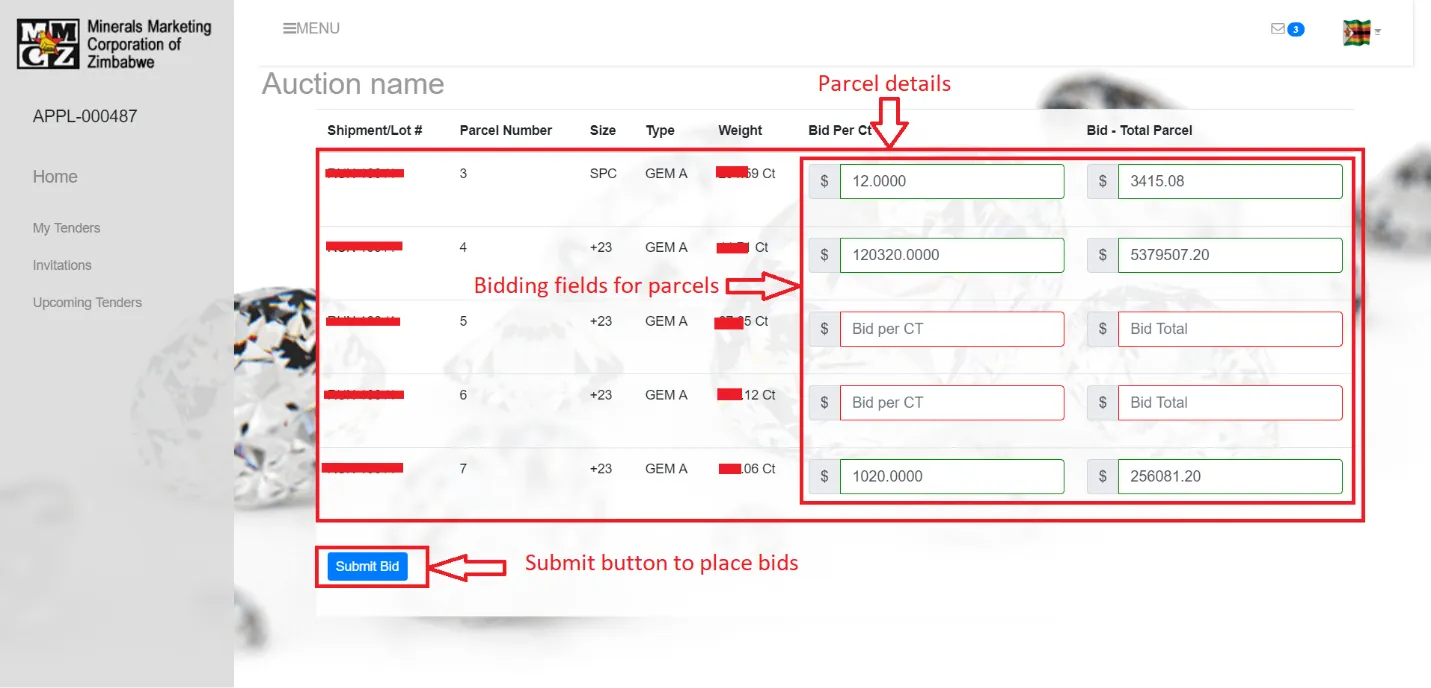
Clicking the action button will take you to a page were parcels are displayed and fields to input your bids. After placing the bids click “submit bids” button to submit the bids, you can always return to edit the bids as long as the tender is still active and not closed. Parcels that you bid for are highlighted in green and those that you don’t are highlighted in red (Figure 2.7)
3.2.3 Awarding
When bidding is done the only thing left is the awarding of the parcels. This is done by the MMCZ team and you can only see the results after the tender closes. Under the “My tenders” options to the left page in the main menu on the awarded tab click on the action button labeled “View bids”. This produces a screen which will show all the parcels awarded to you and options to reject the parcels (Figure 2.8).
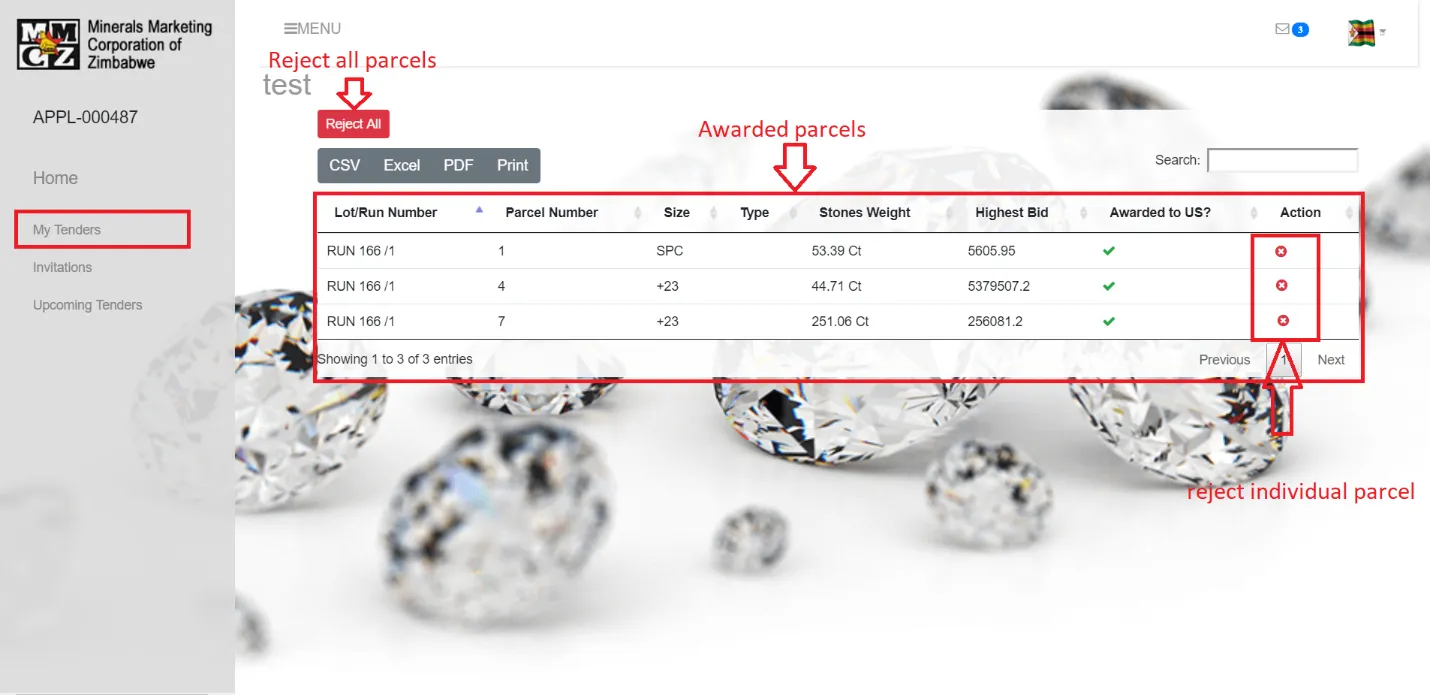
If no action is done the system will automatically award the parcel if no rejection is done. With this done the bidding process will be done. For detailed information on the auction and which parcels you did not win and what the highest bid price was go to the “All tenders” tab under “My tenders” option on the main menu and click “Awards”.